Since I started messing around in Xenia some 2 years ago, that whole scene has come alive.
Xenia Manager now should be the preferred method of Xbox 360 Emulation, its a lot easier as even Xenia Manager has come leaps and bounds it shows updates and makes them easy to do. Once downloaded you should extract it in to a local folder, I’ve extracted mine into C:/Xenia/ like Xenia it will create all the files it needs upon first run.
You can download the latest build of Xenia Manager from GitHub, direct link here (opens new window)
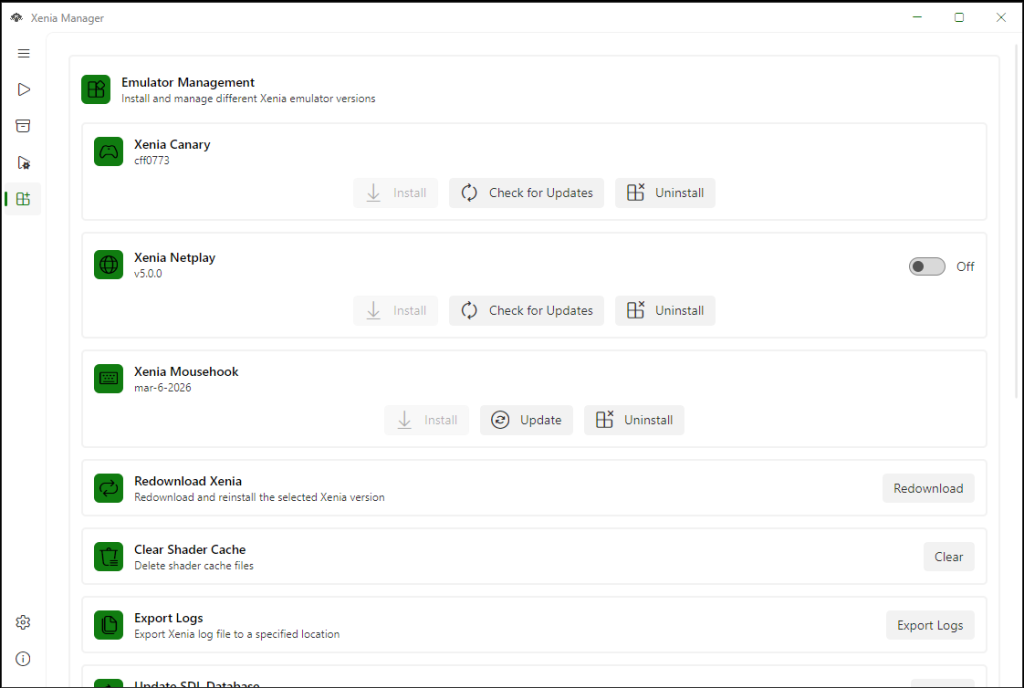
Once run you can chose to install Xenia Canary, Xenia Netplay or Xenia Mousehook, for now lets keep it simple and install Xenia Canary – Install it. Once it is downloaded, that’s it – ready to go.
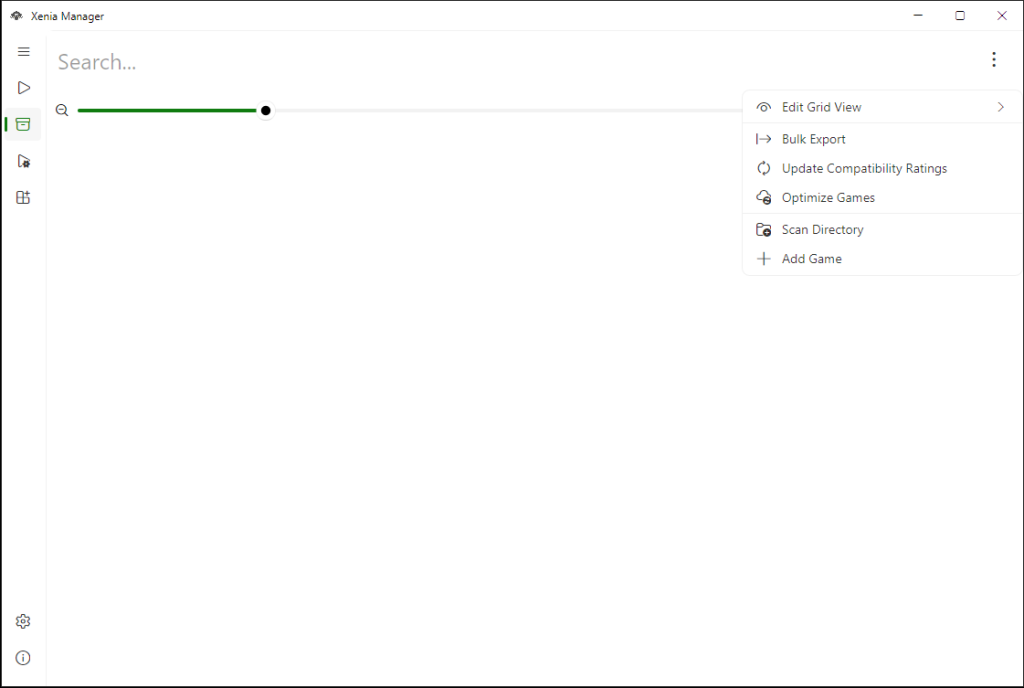
There are a ton of options to go through but really you are ready to test a game now, to add a game navigate to the ‘Game Library’ Tab – you’ll see a blank page, in the top right click the three dot menu and click the add game ‘+’ this will ask you what version to use select ‘Canary’ for now.
I’ll assume you have downloaded or ripped a disc of a game you want to play.. (if not you’ll need to do this to be able to proceed) navigate to the folder of that game, select the file ‘default.xex’ – this is the game executable and will always be named this for the Xbox360 games. Click open and wait a short while and you game should appear, most times with the cover art but for more obscure games a default one will be shown,
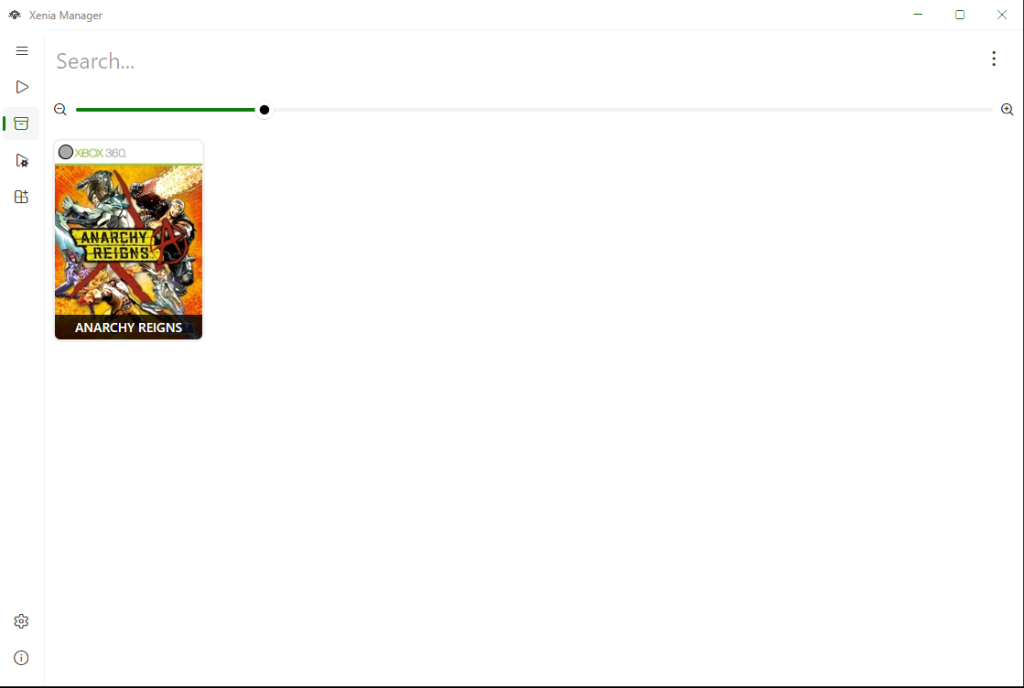
Not every game works, and sometimes it may work but with small errors in the game like shading etc.. in the top of the box artwork is a circle, this denotes the games tested compatibility, grey for unknown, and shades of green for levels of playability, but these can be out of date when a new update is available.
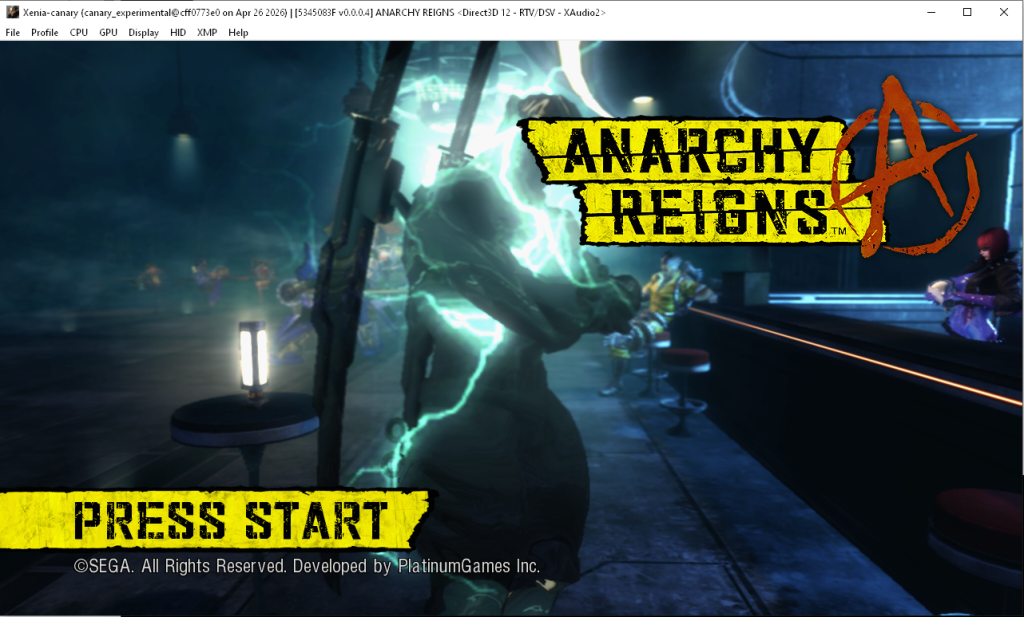
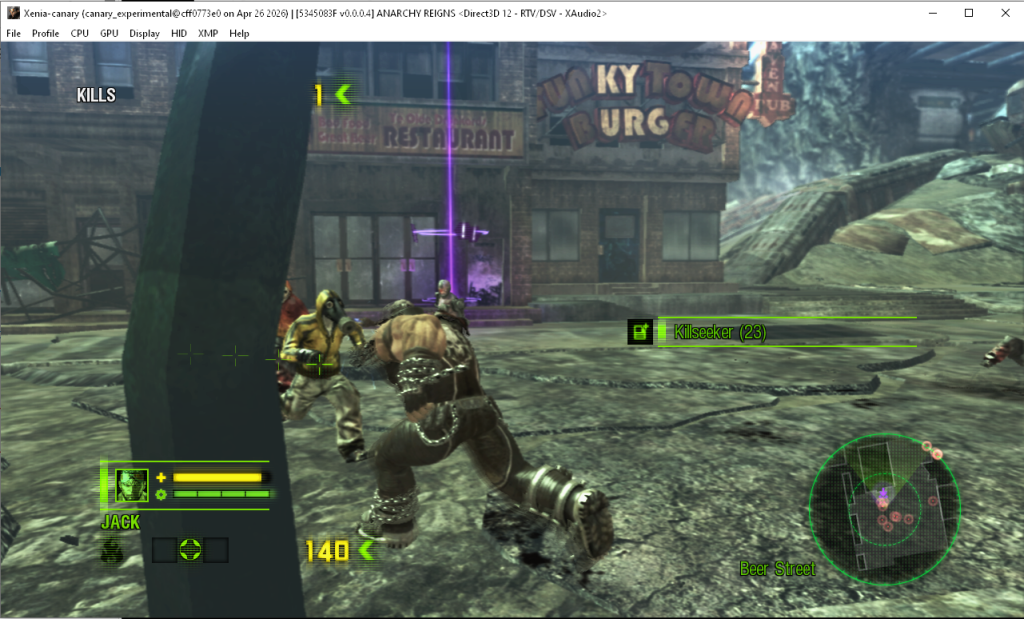
For instance I have added Anarchy to my list and its grey, however it loads and plays just fine, so although the icon is a guide it’s not absolute and its worth trying that quirky game you miss on the Xbox 360, right?

Leave a Reply